Documentation
Connect Zoom to Prismaya
Connect your Zoom account so Prismaya can create Zoom meeting links for appointment bookings where Zoom is selected as the location.
Before You Start
- You need an active Prismaya account.
- You need a Zoom account that you are allowed to connect.
- You must be signed in as the Prismaya user who will host the Zoom meetings.
Connect Zoom
- Sign in to Prismaya.
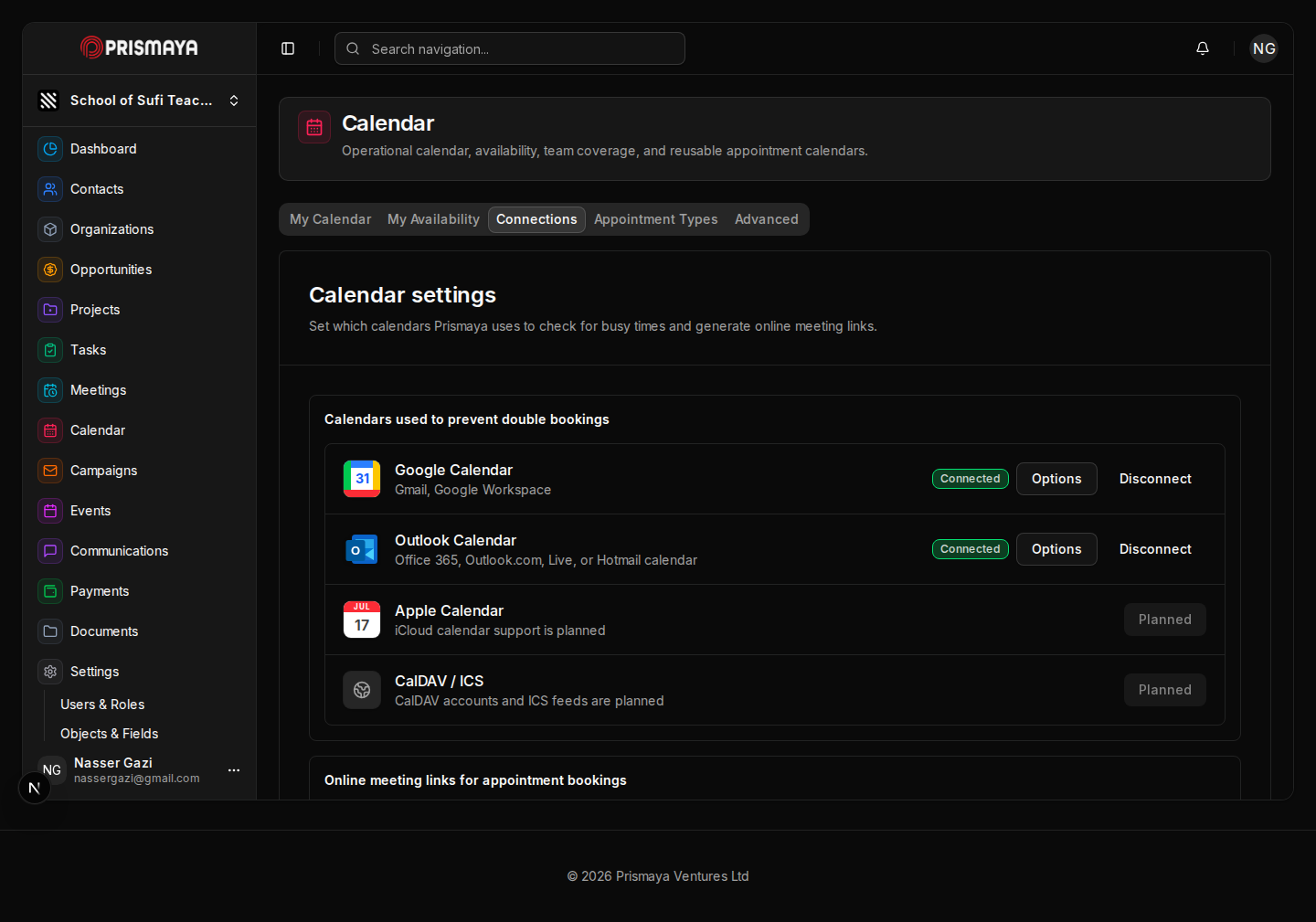
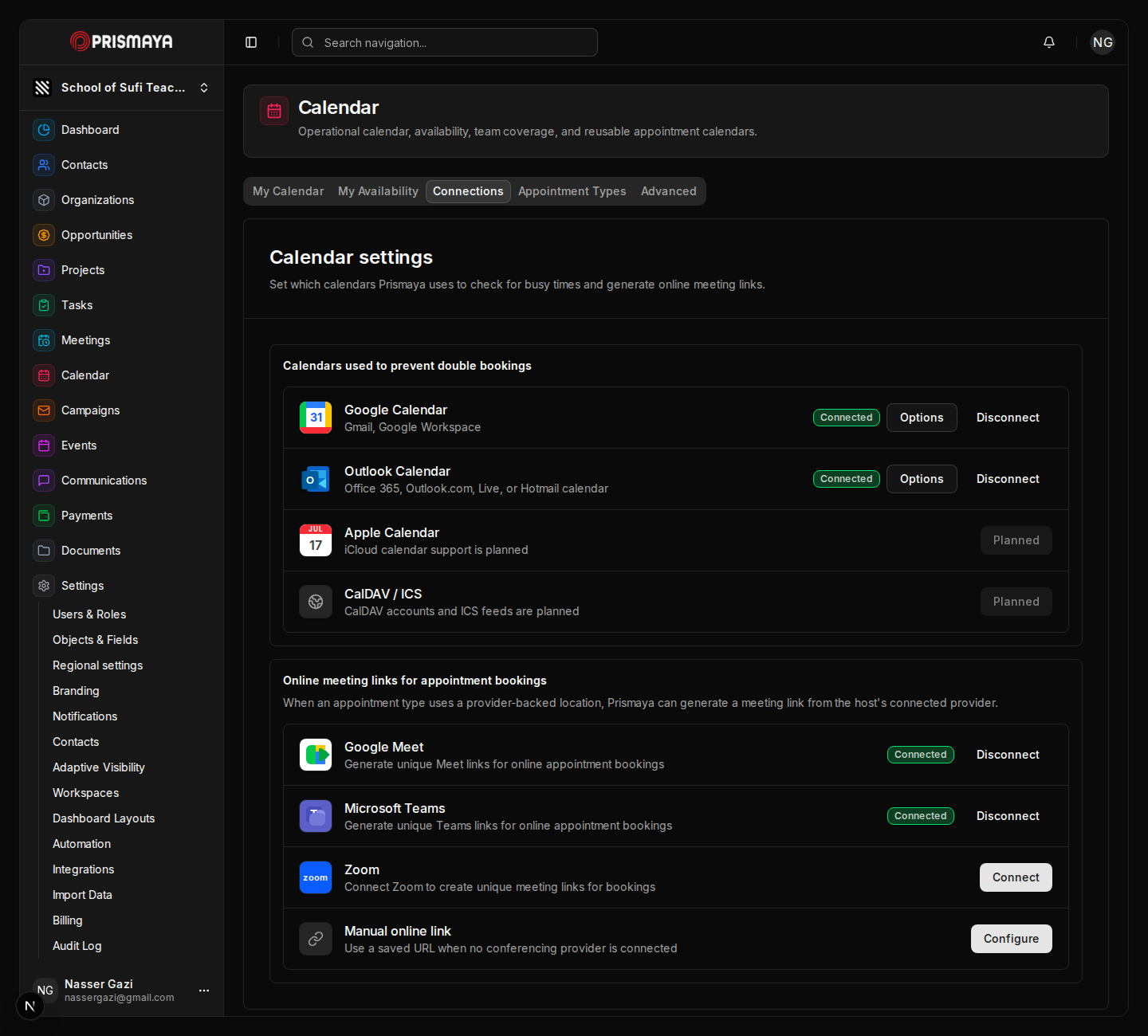
- Open Calendar, then select the Connections tab.
- In Online meeting links for appointment bookings, choose Connect on the Zoom row.
- Approve the Zoom authorization request.
- Return to Prismaya and confirm Zoom shows as Connected.
Use Zoom for an Appointment Type
- Open Calendar and select Appointment Types.
- Create or edit an appointment type.
- Open Location and choose Zoom.
- Save the appointment type.
Remove the Zoom Connection
- Open Calendar, then select Connections.
- Find Zoom in Online meeting links.
- Select Disconnect.
Disconnecting Zoom prevents Prismaya from creating new Zoom links for future bookings.
What Prismaya Uses
Prismaya uses your Zoom authorization to identify the connected Zoom account and create Zoom meetings for appointment bookings. Prismaya stores connected-account metadata and encrypted credentials needed to keep the connection working.
Troubleshooting
- If Zoom still shows Connect, repeat the connection flow from Calendar > Connections.
- If Zoom is unavailable in an appointment type, connect Zoom first using the same Prismaya user who hosts the meeting.
- If you no longer want Prismaya to create Zoom links, disconnect Zoom from Calendar > Connections.